Engineering
Demystifying Git: Your Beginner’s Guide to Version Control, Collaboration, and Code Management
Introduction:
In the world of software development, managing code efficiently is crucial. Whether you’re working on a solo project or collaborating with a team, keeping track of changes, coordinating updates, and maintaining a clear version history is essential. This is where Git comes into play. In this article, we’ll explore what Git is, its benefits, the difference between Git and GitHub, how to install it, and the basic commands you need to know, all explained in an easy-to-understand manner.
What is Git?
Git is a distributed version control system designed to track changes in code during software development. It allows developers to work on projects simultaneously, maintaining a complete history of revisions. Git operates locally on your computer, enabling you to commit changes, create branches, merge code, and revert to previous versions seamlessly.
Benefits of Git:
1. Version Control: Git enables you to keep track of changes made to your code over time. You can review, compare, and revert to any previous version, ensuring project stability and accountability.
2. Collaboration: Git facilitates collaborative development by allowing multiple developers to work on the same project concurrently. It helps manage conflicts, merge contributions, and streamline teamwork.
3. Backup and Recovery: With Git, your code is not only stored locally but also on a remote server (like GitHub), providing a secure backup. In case of data loss or system failure, you can easily restore your project to its latest state.
Difference between Git and GitHub:
While Git is the version control system itself, GitHub is a web-based platform that hosts Git repositories. Git operates locally on your computer, managing version control tasks, whereas GitHub serves as a remote repository hosting service, enabling you to store, share, and collaborate on projects over the internet. In essence, Git is the tool you use on your computer, while GitHub is the platform where you store and share your Git projects.
How to Install Git:
Installing Git is a straightforward process:
1. Windows:
— Download the Git installer from the official website and run the executable file.
— Follow the installation prompts, choosing the default settings unless you have specific preferences.
— Once installed, open Git Bash to access the Git command-line interface.
2. macOS:
— Git comes pre-installed on macOS. To check if Git is installed, open Terminal and type `git — version`.
— If Git is not installed, you can install it using Homebrew by running `brew install git`.
3. Linux:
— Use your distribution’s package manager to install Git. For example, on Ubuntu, you can run `sudo apt-get install git`.
— Alternatively, you can download and compile the source code from the Git website.
Basic Git Commands:
1. git init: Initialize a new Git repository in the current directory.
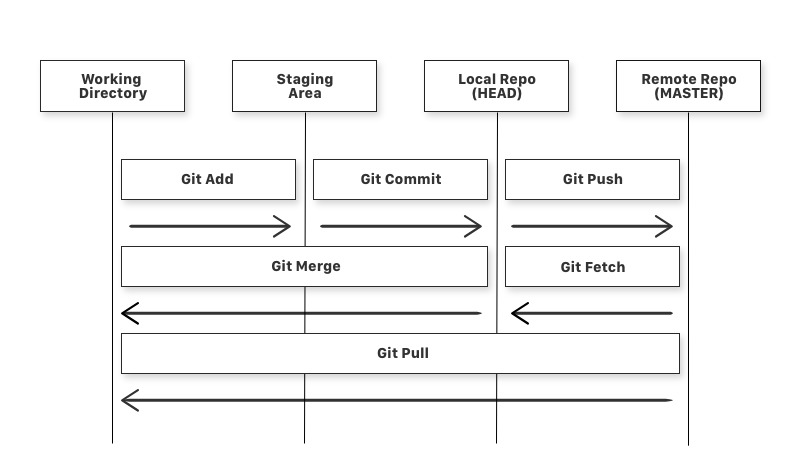
2. git add \<file\>: Add file(s) to the staging area to be included in the next commit.
3. git commit -m “\<message\>”: Commit staged changes to the repository with a descriptive message.
4. git status: View the status of files in the working directory and staging area.
5. git branch: List, create, or delete branches in the repository.
6. git checkout \<branch\>: Switch to a different branch.
7. git merge \<branch\>: Merge changes from a specified branch into the current branch.
8. git push: Upload local repository changes to a remote repository (like GitHub).
9. git pull: Fetch changes from a remote repository and integrate them into the local repository.
Conclusion:
In conclusion, Git is a powerful tool for version control, collaboration, and code management in software development. By understanding its benefits, installing it on your system, and mastering basic commands, you can streamline your workflow, improve productivity, and contribute effectively to projects. Whether you’re a beginner or an experienced developer, Git is an invaluable asset in your toolkit, empowering you to write better code, work smarter, and achieve your goals.
By following this guide, you’ll be well-equipped to embark on your Git journey with confidence and proficiency. Happy coding!
Resources to read more: